Questions
- What do the different buttons in the Zoom app do?
- How do I navigate the Zoom desktop app for the first time?
- How do I start or join a meeting from the Zoom app?
- Where do I find my upcoming meetings in Zoom?
- How do I change my Zoom status or profile settings?
- Where are the meeting controls during a Zoom call?
- How do I schedule a meeting from the Zoom desktop app?
- What does the Home screen in Zoom show me?
Environment
This article covers the Zoom desktop app (also called Zoom Workplace) on Windows 11 and macOS Sequoia (15.x) or later. Steps apply to both platforms unless noted otherwise.
Resolution
https://bowdoin.ensemblevideo.com/Watch/n7Z4BrMg
Sign In and Join a Meeting
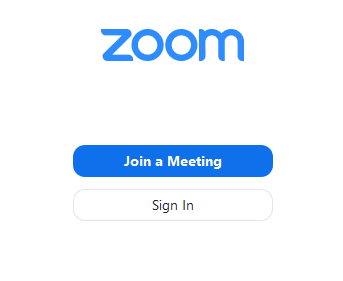
When you open the Zoom desktop app, you are presented with two options:
- Join a Meeting — Join a meeting already in progress without signing in to a Zoom account. Bowdoin recommends signing in instead so your full name and Pro license features are active.
- Sign In — Sign in to your Bowdoin Zoom account to host, schedule, and join meetings.
To sign in with your Bowdoin credentials, click Sign In with SSO on the sign-in screen.
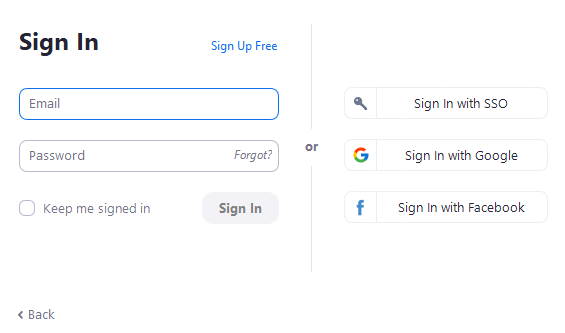
For full sign-in steps, see Log In to Zoom with Your Bowdoin Account in the Related Articles section.
The Home Tab
After signing in, the Home tab is the main screen. The four buttons across the top are your primary actions:

- New Meeting — Start an instant meeting immediately. Click the arrow next to this button to choose whether to start with video on, or to use your Personal Meeting ID (PMI).
- Join — Join a meeting that is already in progress by entering a meeting ID or link.
- Schedule — Set up a future meeting with a date, time, and participant options.
- Share Screen — Share your screen directly into a Zoom Room by entering a sharing key or meeting ID. This shares your screen only — not your video or microphone.
Below the buttons, the Home tab also shows:
- Date and time with background image — Hover over the background image and click the camera icon to change it.

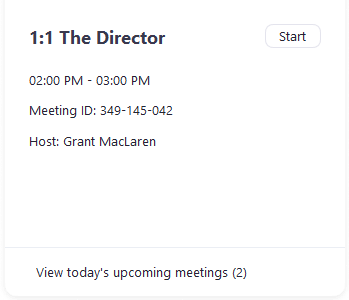
- Upcoming meeting — Displays the next meeting for the current day. Connect your Outlook calendar to Zoom in settings to sync upcoming meetings automatically.
Profile and Status Options
Click your profile picture in the upper-right corner of the Zoom app to access these options:

- Personal note — An optional status message visible to other Zoom users. Similar to an away message.
- Settings — Access audio, video, background, and notification settings.
- Status — Set your status to Available, Away, or Do Not Disturb.
- My Profile — Opens the Zoom web portal to edit your profile photo and display name.
- Check for Updates — Verify that your Zoom app is up to date.
- Sign Out — Sign out of the Zoom app.
- Upgrade to Pro — If you see this option, you are signed in to a free personal account rather than your Bowdoin account. Sign out and sign back in using Sign In with SSO and domain
bowdoin.
In-Meeting Controls
Once you start or join a meeting, the meeting controls appear at the bottom of the Zoom window. Move your mouse inside the window to reveal them if they have been hidden.

Controls vary depending on your role. For a full list of what each role can do, see Zoom's official documentation:
To practice before a real meeting, you can join a Zoom test meeting at any time.
Additional Help
If you need further assistance, you have several options:
- Bowdoin Bot: Chat with Bowdoin Bot directly from any KB page for instant answers.
- Phone: Call the Bowdoin College Service Desk at (207) 725-3030.
- In person: Visit the Tech Hub in Smith Union during business hours.
- Submit a ticket: Request assistance through the Service Catalog.
Additional Resources