Questions
- How do I use Hypothesis in my Canvas course?
- How do I create a Hypothesis annotation assignment in Canvas?
- How do I let students annotate a PDF collaboratively in Canvas?
- How do I set up Hypothesis with a web page URL in Canvas?
- How do I use Hypothesis with a PDF from Google Drive or OneDrive?
- How do I set up group annotation with Hypothesis in Canvas?
- Where do I find Hypothesis in the Canvas assignment builder?
- How do I enable Hypothesis as an External Tool in Canvas?
Environment
This article applies to faculty creating Canvas assignments that use Hypothesis for collaborative annotation of web pages or PDFs. Hypothesis is integrated with Canvas and supports content from public URLs, Canvas file storage, Canvas Page, Google Drive, JSTOR and YouTube.
- Platform: Any supported browser on a Mac or Windows PC
- Audience: Faculty and instructors
- Requires: Hypothesis enabled as an External Tool in Canvas (enabled by default at Bowdoin)
Resolution
- In your Canvas course, select Assignments from the course navigation menu.

- Click + Assignment.

- Scroll down to the Submission Type field. From the drop-down menu, choose External Tool, then click Find.

Select Hypothesis from the list of available tools.

- Select the content source for your annotation activity.

You have six options:
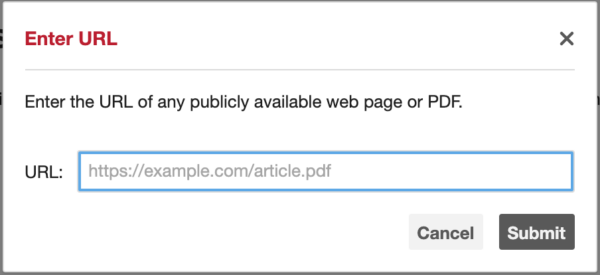
- Enter URL of web page or PDF: Click Enter the URL of web page or PDF, type or paste a publicly accessible URL, and click Submit. The content must be publicly viewable — it cannot be behind a login or paywall.
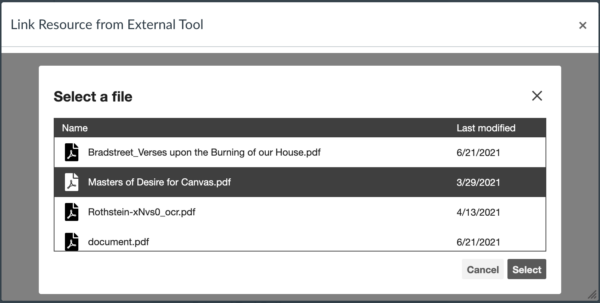
- Select PDF from Canvas: Upload your PDF to Canvas Files before completing this step. Click Select PDF from Canvas, highlight the file, and click Select.
-
Select Canvas Page: Choose the Canvas page that you would like to be added. Click Select Canvas Page, highlight the file, and click Select.
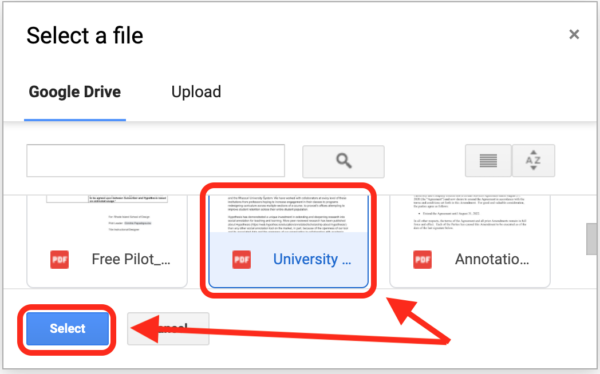
- Select PDF from Google Drive: Click Select PDF from Google Drive and authorize the Hypothesis LMS App to access Google Drive. Select your PDF and click Select.
-
Select JSTOR: Paste in a 'stable' JSTOR URL that you have previously acquired. Click Accept and Continue.
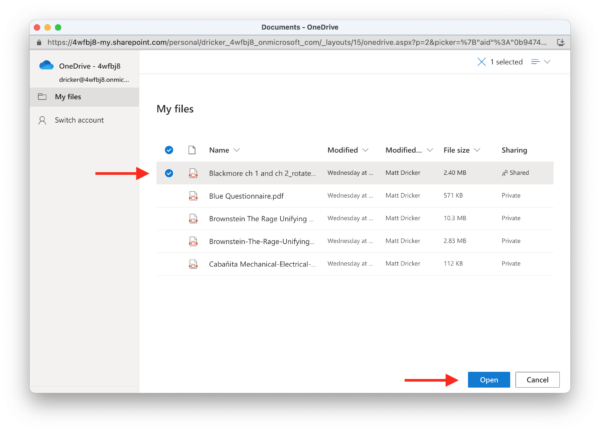
- Select PDF from OneDrive: Click Select PDF from OneDrive and follow the authorization prompts. For detailed instructions, see Using Hypothesis with OneDrive in the Related Articles section.
- Indicate whether this is a group assignment. By default, all student annotations are visible to the entire class. To create separate annotation groups, check This is a group assignment and select the appropriate group set from the drop-down. Click Continue.

- In the External Tool configuration window, check Load In A New Tab for the best reading and annotation experience. Click Select.

- Edit the assignment name, instructions, due dates, and any other settings. Click Save or Save & Publish.

- Preview the assignment to confirm it is configured correctly. The reading should open with the Hypothesis annotation sidebar loaded — you and your students will be able to select text and annotate directly on the page.

Google Drive sharing permissions: When you select a PDF from Google Drive, Hypothesis automatically changes that file's sharing permissions to allow anyone viewing the assignment to access it. Review your file's sensitivity before using this option.
Additional Help
If you need further assistance, you have several options:
- Bowdoin Bot: Chat with Bowdoin Bot directly from any KB page for instant answers.
- Phone: Call the Bowdoin College Service Desk at (207) 725-3030.
- In person: Visit the Tech Hub in Smith Union during business hours.
- Submit a ticket: Request assistance through the Service Catalog.
Additional Resources